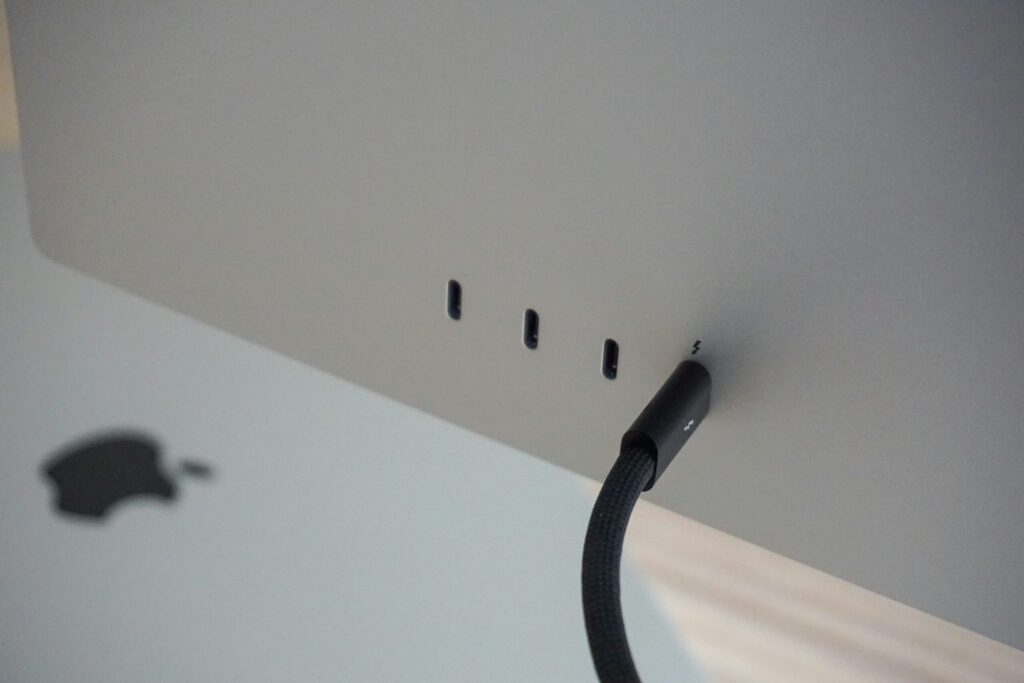
When a USB accessory fails to show up on a Mac, the culprit is often rooted in standard macOS security protections or power limitations rather than broken hardware. Because modern versions of macOS require manual approval before newly connected peripherals can exchange data to prevent malware, denying or missing this prompt will leave the device capable of charging while completely blocking data transmission.
Users can usually trigger the prompt again simply by disconnecting and reconnecting the cable. Accessory behavior can also be managed directly by opening System Settings, navigating to Privacy & Security, and locating the Accessories section. From there, users can configure macOS to ask for new accessories, automatically grant access when the Mac is unlocked, or set it to always allow connections.
To verify if the hardware is recognized at a system level, holding the Option key while clicking the Apple menu reveals the System Information panel, which lists active connections under Hardware. If an accessory does not appear or repeatedly triggers error messages, insufficient power delivery could be to blame. Certain peripherals demand more electricity than a Mac’s USB port can output, requiring dedicated external power cables. Intermediary hardware such as USB hubs and Thunderbolt docks can also cause transmission failures across device chains, making direct connections to the Mac the most reliable troubleshooting step.
System compatibility and software updates also play a role. Storage drives and external cards must be formatted with macOS-supported file systems, specifically APFS, FAT, or ExFAT, and some peripherals require dedicated manufacturer software or drivers. Finally, physical obstructions such as debris in the ports or damaged cables with bent pins, exposed wires, or discoloration can disrupt connections and should be cleared or replaced.
Source: engadget.com