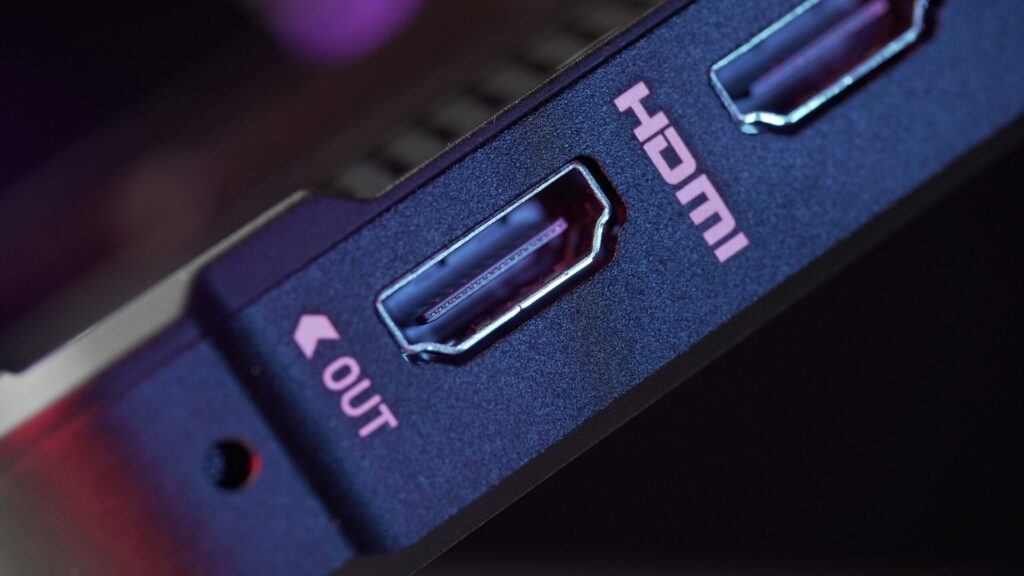
A simple cabling misstep—plugging a monitor into a desktop’s motherboard rather than its dedicated graphics card—remains a frequent cause of poor gaming frame rates and blank displays. Because modern desktop towers often duplicate video connectors like HDMI, DisplayPort, and USB-C across both the rear motherboard input/output panel and the graphics card bracket, users can easily connect to the wrong port.
Motherboard video outputs generally run off a processor’s integrated graphics, which offer significantly less horsepower than a dedicated graphics card installed in a PCIe slot. In certain Windows setups, a dedicated graphics card may still process game rendering while routing the final output through integrated graphics, introducing system overhead. Microsoft has not published specific performance loss figures for that pass-through arrangement, and the real-world impact varies across hardware combinations.
The mistake can also result in a completely black screen rather than degraded performance. Intel desktop processors carrying the “F” or “KF” suffix do not feature integrated graphics silicon, rendering motherboard video outputs non-functional. Additionally, several motherboard models automatically disable integrated display outputs as soon as a dedicated expansion card is detected, which can lead users to mistakenly assume their graphics hardware has failed.
Resolving the issue requires identifying the dedicated graphics card’s ports, which sit lower on the chassis on an expansion bracket and are frequently arranged horizontally alongside each other, separated from the motherboard’s cluster of USB, audio, and Ethernet ports. After shutting down the desktop and transferring the cable to the graphics card, users should ensure the display input matches and verify that their desired refresh rate is active in Windows display settings.
Source: engadget.com